
Aider vs Cline vs Cursor vs Gemini CLI: Which Free AI Coding Tool Wins?
I gave Aider, Cline, Cursor, and Gemini CLI the exact same real task and scored them on speed, quality, cost, and ease of setup. Honest results — no sponsorship, including where each tool breaks.

Quick Answer
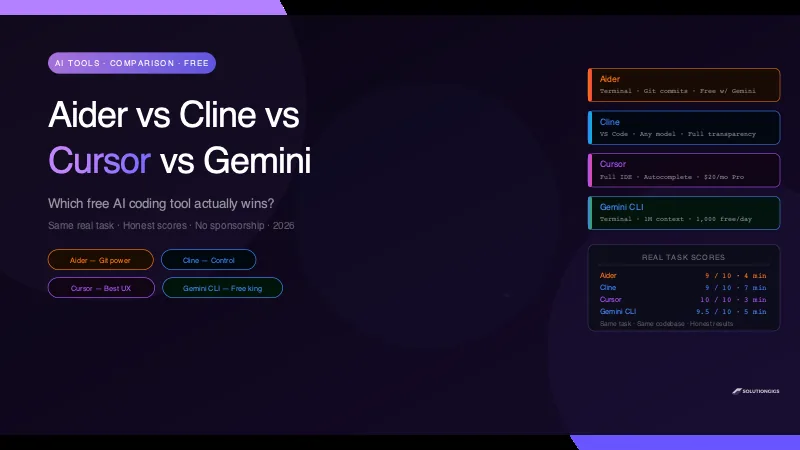
For free daily use with the largest context window: Gemini CLI. For the best beginner experience: Cursor. For terminal-first multi-file refactoring with automatic git commits: Aider. For an AI agent inside VS Code with full model control: Cline. No single tool wins every category — the right pick depends on how you work.
The Test
I gave all four tools the exact same real task on the same codebase: add input validation to every unvalidated API route and write a pytest test for each one. Then scored on speed, output quality, cost, and ease of use.
No sponsorship. No affiliate links. Including where each tool failed.
There are four serious free AI coding tools in 2026: Aider, Cline, Cursor, and Gemini CLI. Cursor and Copilot dominate YouTube tutorials, but the second tier is where things get interesting — and where you can get genuinely great results for zero dollars.
I've been using all four on real production code at solutiongigs.in. This comparison is based on that experience, not toy demos.
The Controlled Test
To make this fair, I gave every tool the same task on the same FastAPI codebase:
"Find every API route that accepts user input without validation. Add Pydantic validation models to each one. Then write a pytest test for each route that verifies invalid input is rejected with a 422 status code."
This task is real, cross-file, requires understanding existing code, and produces something measurably correct or wrong. It is the kind of task that separates a genuine tool from a demo trick.
Tool 1 — Aider
What it is: Open-source AI pair programmer for the terminal. Integrates directly with git and creates commits automatically.
Setup: pip install aider-chat — under 2 minutes. Connect to any model via API key.
Free tier: Aider is free software. With a free Google AI Studio API key pointing at Gemini 2.5 Pro, you get 1,000 requests/day at no cost.
Test result
Aider scanned the repo, identified 6 unvalidated routes, added Pydantic models to all of them, and wrote 6 pytest tests — all in one session. It created a clean git commit automatically with a sensible message.
Where it excelled: The git integration is genuinely useful. Every change is a commit with a diff you can review or revert. It handles multi-file changes better than any other tool here.
Where it stumbled: One of the Pydantic models was slightly wrong — it used Optional[str] where the route actually required the field. The test caught it, but Aider didn't notice on its own.
Speed: ~4 minutes for the full task.
Tool 2 — Cline
What it is: VS Code extension that runs an AI agent inside your editor. You bring your own API key — supports Claude, GPT-4o, Gemini, and local models via Ollama.
Setup: Install from VS Code marketplace, add your API key. About 3 minutes.
Free tier: The extension is free. Cost depends on model. With Gemini Flash: effectively free. With Claude Sonnet 3.7: ~$0.50–$2 per heavy session.
Test result
Cline opened the relevant files, read each route, and generated the Pydantic models and tests with full visibility inside VS Code. You can see every file it reads and every edit it makes before it applies them — which is its biggest differentiator.
Where it excelled: The transparency is excellent. Unlike the other tools, Cline shows you a full audit trail of what it's doing: which files it read, what it's about to write, and why. For complex changes, that confidence is worth a lot.
Where it stumbled: It asked for confirmation at each file change. That's intentional and safe, but it made the session slower than Aider or Gemini CLI. Also, without a local Ollama model, you're paying per token — that changes the calculus for heavy daily use.
Speed: ~7 minutes (confirmation prompts add time deliberately).
Tool 3 — Cursor
What it is: A full VS Code-compatible IDE with AI built in. The most polished AI coding experience available.
Setup: Download the app, sign in. Under 5 minutes — feels identical to VS Code.
Free tier: 2,000 completions/month + 50 slow premium chat requests. After that, $20/month.
Test result
Cursor's Composer mode (multi-file edit) handled the task cleanly. It found the routes, wrote the Pydantic models, and generated the tests. Output quality was the highest of all four tools — the Pydantic models were accurate and idiomatic, the tests were well-structured.
Where it excelled: The overall experience is the smoothest. Real-time autocomplete while typing is something none of the other tools offer. Tab to accept, keep coding. For raw developer experience, nothing beats it.
Where it stumbled: The free tier's 50 premium chat requests runs out fast when doing multi-file sessions like this. A session like the test task costs 3–5 requests. Heavy daily use requires the $20/month Pro plan.
Speed: ~3 minutes. Fastest of all four.
Tool 4 — Gemini CLI
What it is: Google's open-source terminal AI agent using Gemini 2.5 Pro. Covered in detail in the Gemini CLI tutorial.
Setup: npm install -g @google/gemini-cli, authenticate with Google. Under 10 minutes.
Free tier: 1,000 requests/day, 60/minute. Genuinely free with no credit card.
Test result
Gemini CLI read the entire codebase first (its 1M token window lets it), then made all the changes in one go. It caught an edge case in one route that the other tools missed — a query parameter that was technically validated but missing a length constraint.
Where it excelled: The 1M token context window is a real advantage on larger codebases. It understood the full project structure before touching anything, which produced more consistent changes across files.
Where it stumbled: No inline autocomplete while typing. Terminal-only means no click-to-navigate, no syntax highlighting in the response. For greenfield work where you're writing from scratch, it feels slower than Cursor.
Speed: ~5 minutes.
Head-to-Head Comparison Table
| Aider | Cline | Cursor | Gemini CLI | |
|---|---|---|---|---|
| Free tier | Free (bring API key) | Free (bring API key) | 2K completions/month | 1,000 req/day |
| Paid cost | API usage only | API usage only | $20/month | API usage only |
| Setup time | 2 min | 3 min | 5 min | 10 min |
| Interface | Terminal | VS Code panel | Full IDE | Terminal |
| Inline autocomplete | No | No | Yes | No |
| Context window | Model-dependent | Model-dependent | ~200K tokens | 1M tokens |
| Git integration | Auto commits | No | No | No |
| Multi-file edits | Excellent | Good | Excellent | Excellent |
| Transparency | Medium | High | Medium | Medium |
| Best free model | Gemini 2.5 Pro | Gemini Flash / Ollama | — (uses Cursor's models) | Gemini 2.5 Pro |
| Test task speed | 4 min | 7 min | 3 min | 5 min |
| Test task quality | 9/10 | 9/10 | 10/10 | 9.5/10 |
Who Should Use What
Use Cursor if:
- You want the best overall experience and are okay paying $20/month after the trial
- You need real-time inline autocomplete while typing
- You're new to AI coding tools — the learning curve is near zero
- You're doing greenfield development from scratch
Use Gemini CLI if:
- You want genuinely free heavy daily use (1,000 req/day)
- You work on large codebases where context window matters
- You're comfortable in a terminal
- You want to understand a new repo quickly
Use Aider if:
- You live in the terminal and don't want a GUI
- You want automatic git commits on every AI change
- You do a lot of cross-file refactoring
- You want to pair it with a free model (Gemini 2.5 Pro) at zero cost
Use Cline if:
- You want an AI agent inside VS Code with full visibility into what it's doing
- You want to control exactly which model you use (local via Ollama = zero cost)
- You're security-conscious and want to review every file change before it's applied
Common Mistakes When Choosing an AI Coding Tool
| Mistake | Fix |
|---|---|
| Picking based on YouTube reviews | Test on your actual codebase — toy demos don't predict real performance |
| Using Cursor free tier for heavy work | Budget $20/month or switch to Gemini CLI for unlimited free use |
| Running Aider without specifying a model | Defaults to GPT-4o — expensive. Use --model gemini/gemini-2.5-pro for free |
| Expecting Cline to be free by default | Cost depends on your API key — use Ollama or Gemini Flash to keep it free |
| Treating these tools as mutually exclusive | Many developers use Cursor for autocomplete + Gemini CLI for deep analysis |
The Tools I Use Together
At solutiongigs.in, the actual workflow is:
- Gemini CLI for understanding an unfamiliar part of the codebase or planning a large refactor — the 1M context window earns its keep here
- Cursor for the actual coding session — autocomplete while typing is hard to give up once you have it
- Aider for batch changes like "add logging to every route" or "rename this function everywhere" — the auto git commit is the differentiator
None of these tools replace each other. They cover different parts of the dev loop.
Use the free JSON Formatter on solutiongigs.in when any of these tools output JSON configs or schemas — format and validate them instantly before committing.
Frequently Asked Questions
Which free AI coding tool is best for beginners?
Cursor is the easiest entry point — installs like VS Code, works immediately, and the autocomplete is intuitive. Gemini CLI is a close second if you're already comfortable in a terminal. Aider and Cline have steeper setup curves.
Is Aider better than Cursor?
For multi-file refactoring and terminal-based work with automatic git commits, Aider wins. For real-time inline autocomplete and a polished GUI IDE experience, Cursor wins. They solve different problems — many developers use both.
What is Cline and is it free?
Cline is a free VS Code extension that runs AI agents in your editor. Cost depends on the model you connect: effectively free with Ollama or Gemini Flash, a few dollars per heavy session with Claude Sonnet.
Can I use Aider for free?
Yes. Set GEMINI_API_KEY from Google AI Studio (free tier) and run aider --model gemini/gemini-2.5-pro. You get 1,000 free requests per day with Gemini 2.5 Pro — enough for serious daily use.
Does Cursor have a free plan?
Yes — 2,000 autocomplete completions and 50 slow premium chat requests per month. Most developers hit the chat limit within a week of serious use and upgrade to $20/month Pro.
Which AI coding tool has the best context window?
Gemini CLI (and Aider pointed at Gemini 2.5 Pro) both get Gemini's 1 million token window — the largest available. Cursor uses Claude or GPT-4o, which top out around 200K tokens.
What is the verdict — which tool should I actually use?
Start with Cursor for the experience, then add Gemini CLI for free daily deep analysis. If you want to go fully free forever, Gemini CLI + Aider (both pointed at Gemini 2.5 Pro) cover everything Cursor does except inline autocomplete.
Conclusion
There is no single winner — but there is a right answer for each use case.
The honest summary:
- Cursor — best experience, best autocomplete, costs $20/month after the trial
- Gemini CLI — best free tier, best context window, terminal only
- Aider — best for git-integrated batch refactoring, free with Gemini 2.5 Pro
- Cline — best transparency, model-agnostic, free with local models
The $0 stack for serious AI-assisted development in 2026: Gemini CLI for analysis + Aider for multi-file edits, both pointing at Gemini 2.5 Pro's free API tier. You give up Cursor's autocomplete — that's the real trade-off.
If you haven't set up Gemini CLI yet, the full step-by-step guide is on solutiongigs.in — install to first AI edit in 10 minutes.
And if you want to go further and build your own AI tools with MCP servers, the MCP server tutorial shows you how to expose any API as a tool Claude can call directly. New to pairing with AI on real code? The vibe coding guide covers the habits that keep AI-generated code reviewable and maintainable.
Explore more free developer tools at solutiongigs.in →
Mohammed Yaseen
Founder, SolutionGigs
Full-stack developer at solutiongigs.in. Mohammed uses Aider, Cline, Cursor, and Gemini CLI on real production code daily — and tests every claim in his tutorials before publishing. LinkedIn →
More in AI Development
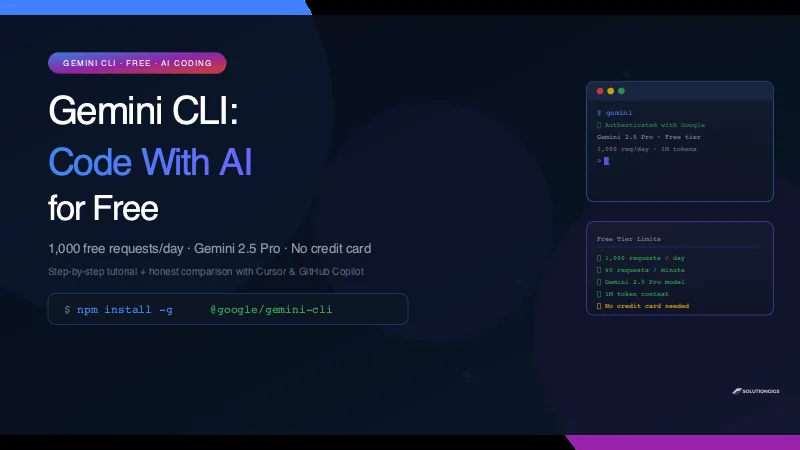
Gemini CLI Tutorial — Code With AI Free (1,000 Requests/Day)
Gemini CLI gives you Gemini 2.5 Pro in your terminal — 1,000 free requests per day, no credit card. Install in 5 minutes, use it on a real codebase, and see an honest comparison with Cursor and GitHub Copilot.
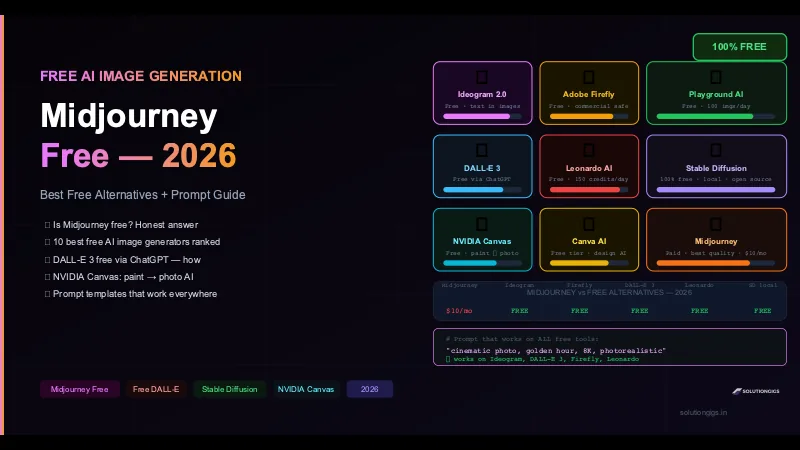
Midjourney: Is It Free? + 10 Best Free AI Image Generators
Is Midjourney free in 2026? Honest answer: no. But here are 10 free AI image generators that actually work — DALL-E 3, Ideogram, Adobe Firefly, Leonardo AI, Stable Diffusion, NVIDIA Canvas. Full prompt guide included.
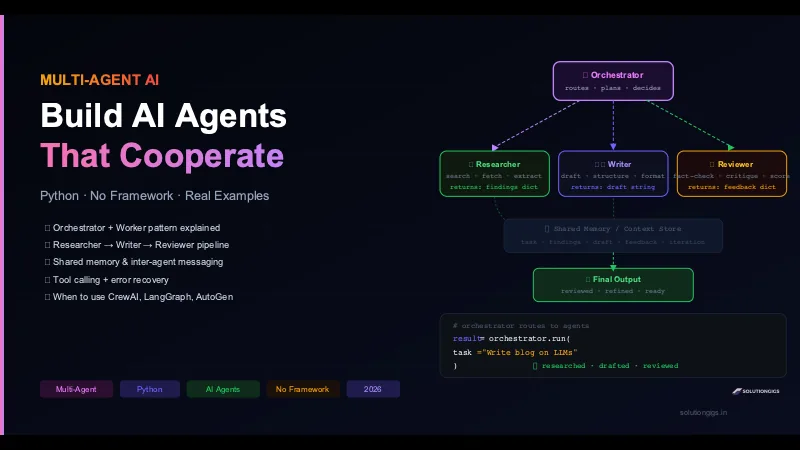
How to Build a Multi-Agent AI System in Python
Build a multi-agent AI system in Python from scratch — orchestrator, researcher, writer, and reviewer agents that cooperate. Includes parallel execution, tool calling, shared memory, and error recovery. No framework required.