
Gemini CLI Tutorial — Code With AI Free (1,000 Requests/Day)
Gemini CLI gives you Gemini 2.5 Pro in your terminal — 1,000 free requests per day, no credit card. Install in 5 minutes, use it on a real codebase, and see an honest comparison with Cursor and GitHub Copilot.

Quick Answer
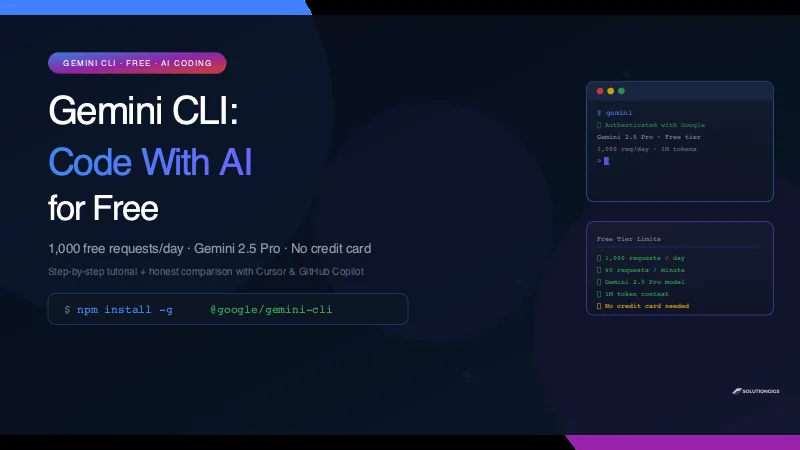
Gemini CLI is Google's free AI coding assistant for the terminal. Install with npm install -g @google/gemini-cli, authenticate with your Google account, and you get 1,000 free AI requests per day using Gemini 2.5 Pro — no credit card, no subscription. It understands your whole codebase at once (1M token context) and can read, edit, and explain code across multiple files in a single prompt.
What You'll Have at the End
Gemini CLI installed and authenticated, with a real project improved using AI — zero dollars spent. Plus an honest comparison with Cursor and GitHub Copilot so you know when to use which tool.
Time from zero to first AI-powered code edit: about 10 minutes.
You do not need a paid subscription to code with AI in 2026.
Gemini CLI — Google's open-source terminal tool — gives you access to Gemini 2.5 Pro for free. The free tier is 1,000 requests per day and 60 requests per minute. That is enough to use it heavily all day, every day, without spending a cent.
The catch? Most tutorials show you a toy "hello world" example and call it done. This one doesn't. We'll set up Gemini CLI from scratch, use it on a real codebase, and be straight about where it falls short.
What Is Gemini CLI?
Gemini CLI is an open-source AI agent for your terminal that uses Google's Gemini 2.5 Pro model. You run it in any project directory and it can read files, run commands, edit code, and answer questions about your codebase — all from a conversational prompt.
It was released by Google in June 2025 and immediately stood out because of two things:
- It's genuinely free. 1,000 requests/day on the Gemini API free tier. No credit card.
- It has a 1 million token context window. Most AI tools struggle with large codebases. Gemini 2.5 Pro can hold roughly 750,000 words of code in context at once — meaning it can read an entire project before answering your question.
Unlike Cursor (a full IDE) or GitHub Copilot (an inline autocomplete plugin), Gemini CLI lives entirely in your terminal and works with whatever editor you already use.
Gemini CLI vs Cursor vs GitHub Copilot — Quick Comparison
Before we install anything, here is the honest comparison:
| Gemini CLI | Cursor | GitHub Copilot | |
|---|---|---|---|
| Free tier | 1,000 req/day | 2-week trial | 2,000 completions/month |
| Paid price | API usage (cheap) | $20/month | $10/month |
| Context window | 1M tokens | ~200K tokens | ~8K tokens (standard) |
| IDE integration | Terminal only | Full IDE | VS Code, JetBrains |
| Inline autocomplete | No | Yes | Yes |
| Whole-codebase chat | Excellent | Good | Limited |
| Best for | Analysis, refactoring, free daily use | Greenfield dev, autocomplete | Inline suggestions while typing |
The bottom line: If you want inline autocomplete while you type, Cursor or Copilot wins. If you want to ask deep questions about an existing codebase or do free AI-assisted development all day, Gemini CLI wins — and it costs nothing.
Step 1 — Install Node.js (If You Don't Have It)
Gemini CLI requires Node.js 18 or higher.
Check your current version:
node --version
If it returns v18.x.x or higher, skip ahead. If not, install Node.js from nodejs.org (LTS version) or use a version manager:
# On macOS with Homebrew
brew install node

# On Ubuntu/Debian
curl -fsSL https://deb.nodesource.com/setup_20.x | sudo -E bash -
sudo apt-get install -y nodejs
Verify the install:
node --version   # Should show v18.x.x or higher
npm --version
Step 2 — Install Gemini CLI
One command:
npm install -g @google/gemini-cli
Verify it installed correctly:
gemini --version
You should see the version number. If you get a "command not found" error, your npm global bin directory may not be in your PATH. Run npm config get prefix to find the path and add [prefix]/bin to your PATH.
Step 3 — Authenticate With Your Google Account
Run Gemini CLI for the first time:
gemini
On the first launch, Gemini CLI opens your browser and asks you to sign in with a Google account. This is the OAuth flow for the free API tier — no API key or credit card required.
After signing in, your browser will confirm the authentication and you can close it. Back in the terminal, Gemini CLI loads into an interactive session.
You should see something like:
Gemini CLI v1.x.x
Type /help for available commands, or start chatting.

>
You are now connected to Gemini 2.5 Pro for free.
Step 4 — Navigate to a Real Project
The power of Gemini CLI is context. Navigate to an actual codebase you are working on:
cd ~/your-project
gemini
When you start Gemini CLI inside a project directory, it has access to your files. You can ask it to read, analyse, and modify them directly.
If you want to follow along with a real example, clone a small public repo:
git clone https://github.com/fastapi/fastapi
cd fastapi
gemini
Step 5 — Your First Real Prompt
Let's not start with "hello world." Here is a useful first prompt to run on any codebase:
Summarise the overall architecture of this project. What are the main modules,
what does each one do, and how do they connect? Give me a mental model I can
hold in my head.
Gemini CLI reads the directory, finds the important files, and returns a structured explanation. For a project you just cloned or inherited, this alone is worth the 10-minute setup.
For a FastAPI project, you'd get back the router structure, dependency injection pattern, middleware chain, and where the business logic lives — in under 30 seconds.
Step 6 — Ask It to Edit Code
Gemini CLI can modify files directly. Try this on any Python project:
Find all functions in this project that have no docstring and add a brief,
accurate docstring to each one. Make the edits in place.
Gemini CLI will:
- Scan your project for Python files
- Find functions missing docstrings
- Write appropriate docstrings based on the function's code
- Apply the edits
It shows you a diff before writing anything. You confirm or reject.
For a real task I ran on a FastAPI project at solutiongigs.in: asking Gemini CLI to add input validation to all unvalidated route parameters took about 4 minutes and caught 6 missing validations I had missed in a code review.
Step 7 — Use Slash Commands
Gemini CLI has built-in commands that make common tasks fast:
| Command | What it does |
|---|---|
/help |
List all available commands |
/chat save my-session |
Save the current conversation |
/chat resume my-session |
Resume a saved conversation |
/tools |
List tools Gemini can use (file read/write, shell commands) |
/quit |
Exit |
The most useful pattern for a coding session:
> /chat save refactor-auth
Then later in a new session:
> /chat resume refactor-auth
Gemini CLI picks up exactly where you left off, with full context of the previous conversation.
What Gemini CLI Is Good At (And Where It Falls Short)
After using it daily for weeks, here is an honest breakdown:
Where Gemini CLI excels
- Understanding large codebases. The 1M token context window is genuinely game-changing. You can dump an entire project into context and ask cross-file questions that other tools can't handle.
- Refactoring across multiple files. "Rename this function everywhere and update all its callers" works reliably.
- Writing tests. "Write pytest tests for all public functions in auth.py" produces accurate, runnable tests.
- Explaining unfamiliar code. The single most useful thing: clone an unfamiliar repo and ask "explain how this works" at any level of abstraction.
- Code review. "Review this file for bugs and suggest improvements" catches real issues.
Where Gemini CLI falls short
- No inline autocomplete. It doesn't complete your code as you type in an editor. For that, use Cursor or GitHub Copilot.
- Rate limit on the free tier. 60 requests per minute means rapid back-and-forth can hit the limit. For heavy iteration, slow down or upgrade to a paid API key.
- Terminal only. There is no GUI. If you work entirely in a visual editor, the workflow feels awkward at first.
- Not great for brand-new greenfield work. Starting from a blank file without IDE autocomplete is slower than using Cursor.
See how Gemini CLI compares head-to-head against Aider and Cline on the same real task in Aider vs Cline vs Cursor — Which Free AI Coding Tool Actually Wins?. And if you're new to working alongside AI on real code, the vibe coding guide covers the workflow habits that keep AI-generated code maintainable.
Common Mistakes When Starting With Gemini CLI
| Mistake | Fix |
|---|---|
| Running it outside a project directory | cd into your project first — context is everything |
| Vague prompts ("make this better") | Be specific: file name, what to change, expected result |
| Ignoring the diff before confirming | Always review what it's about to write |
| Using it for inline autocomplete | Use Cursor or Copilot for that — this is a different tool |
| Not saving long sessions | Use /chat save to preserve context across sessions |
Free Developer Tools Worth Pairing With Gemini CLI
While you're building with Gemini CLI, a few free tools from solutiongigs.in speed up the dev loop:
- JSON Formatter — When Gemini outputs a JSON config or schema, format and validate it instantly.
- Readability Checker — If you're generating documentation or README content, check readability before committing.
- ATS Resume Checker — If you're job hunting, use Gemini CLI to tailor your resume to a JD, then check the keyword match here.
All free. No account required.
Frequently Asked Questions
Is Gemini CLI really free?
Yes. The Gemini API free tier gives you 1,000 requests per day and 60 requests per minute using Gemini 2.5 Pro — no credit card required. Authenticate with your Google account and you're done. Paid API keys are available through Google AI Studio if you need higher rate limits.
How do I install Gemini CLI?
Install Node.js 18+ first, then run: npm install -g @google/gemini-cli. Run gemini in your terminal to trigger the Google account authentication flow. The whole setup takes under 10 minutes.
What is Gemini CLI good at?
Gemini CLI's standout strength is whole-codebase analysis using its 1 million token context window. It's excellent for understanding unfamiliar repos, writing tests, cross-file refactoring, and code review. Less suited for inline autocomplete while typing.
How does Gemini CLI compare to Cursor or GitHub Copilot?
Gemini CLI has the largest free tier (1,000 req/day), the largest context window (1M tokens), and works in your existing terminal without changing your editor. Cursor and Copilot win on real-time inline autocomplete inside the IDE. Pick the right tool for the job — they're not mutually exclusive.
Can I use Gemini CLI on Windows?
Yes. Install Node.js 18+ from nodejs.org and run npm install -g @google/gemini-cli in PowerShell or Windows Terminal. WSL2 also works well if you prefer a Linux-like environment.
Does Gemini CLI require an API key?
No API key is needed for the free tier — you authenticate with your Google account via OAuth. If you want to use a Google AI Studio API key for higher rate limits, set the GEMINI_API_KEY environment variable and Gemini CLI will use it automatically.
What happens when I hit the rate limit?
Gemini CLI shows an error message and waits. The free tier resets every minute (60 req/min) and every day (1,000 req/day). If you hit the per-minute limit frequently during heavy sessions, either slow down your iteration or get a paid API key from Google AI Studio.
Conclusion
Gemini CLI is the best free AI coding assistant available in 2026 for terminal-based development. The 1,000 free requests per day on Gemini 2.5 Pro is a genuinely generous tier — enough for serious daily use without paying anything.
What you set up today:
- Gemini CLI installed and authenticated — zero cost
- Connected to Gemini 2.5 Pro with a 1M token context window
- Used it on a real codebase: architecture summary, docstring generation, cross-file refactoring
The honest verdict: It doesn't replace Cursor if you want real-time autocomplete. But for understanding large codebases, writing tests, and doing deep code review — all for free — nothing else comes close.
Next: The follow-up post compares Aider vs Cline vs Cursor vs Gemini CLI on the same real task so you can see exactly where each tool wins and loses.
Explore more free developer tools at solutiongigs.in →
Mohammed Yaseen
Founder, SolutionGigs
Full-stack developer and builder at solutiongigs.in. Mohammed builds MCP servers, automation pipelines, and FastAPI backends — and tests every AI coding tool he writes about on real production code before recommending it. LinkedIn →
More in AI Development
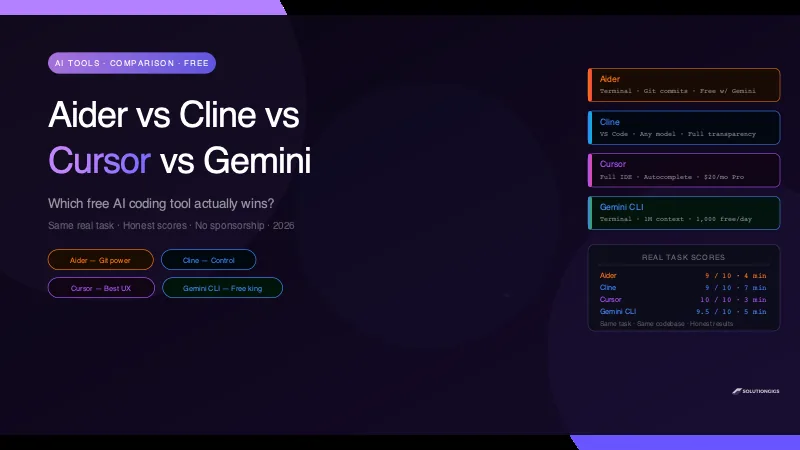
Aider vs Cline vs Cursor vs Gemini CLI: Which Free AI Coding Tool Wins?
I gave Aider, Cline, Cursor, and Gemini CLI the exact same real task and scored them on speed, quality, cost, and ease of setup. Honest results — no sponsorship, including where each tool breaks.
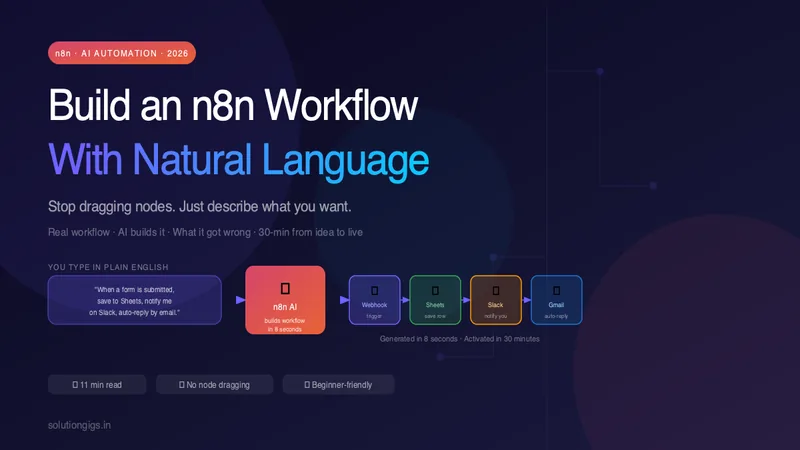
Build an n8n Workflow With Just Natural Language (n8n + AI)
Stop dragging nodes around. I describe a real automation in plain English, let n8n AI build it, show what it got wrong, and fix it live — from idea to a running workflow in under 30 minutes.
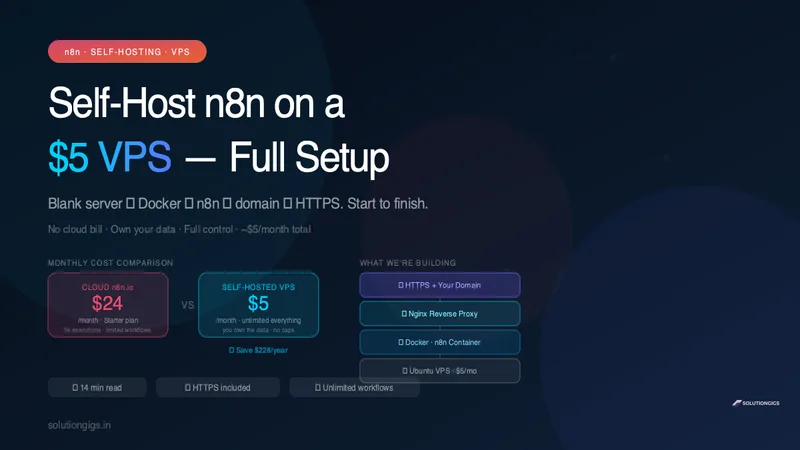
Self-Host n8n on a $5 VPS — Full Setup, Start to Finish
Blank Ubuntu VPS to a secured, production-ready n8n instance with Docker, Nginx, and HTTPS — for about $5/month. Includes firewall setup, auto-start on reboot, and a real cost breakdown vs cloud n8n.