
Self-Host n8n on a $5 VPS — Full Setup, Start to Finish
Blank Ubuntu VPS to a secured, production-ready n8n instance with Docker, Nginx, and HTTPS — for about $5/month. Includes firewall setup, auto-start on reboot, and a real cost breakdown vs cloud n8n.
Last Updated: August 2026 · 14 min read
Quick Answer
To self-host n8n on a $5 VPS: spin up an Ubuntu 22.04 server, install Docker, run n8n via Docker Compose bound to localhost only, put Nginx in front as a reverse proxy, and add HTTPS with Certbot + Let's Encrypt. Lock the firewall to ports 22, 80, and 443 only. Total cost: ~$5/month for unlimited workflows with no execution caps.
What You'll Have at the End
A production-ready, self-hosted n8n instance — secured with HTTPS, running on your own domain, behind Nginx and a firewall, auto-starting on reboot. Total cost: ~$5/month for unlimited workflows and executions.
Time from blank server to live n8n: about 30 minutes. Security basics that most tutorials skip are covered too.
n8n's managed cloud plan starts at $24/month for 5,000 executions. If you run more than a handful of workflows, you hit that cap fast. And if you're a developer using n8n seriously — pulling data, running AI nodes, processing webhooks all day — you'll blow past 5,000 executions in a week.
Self-hosting fixes all of it. You get unlimited workflows, unlimited executions, and full control over your data, for the price of a cheap lunch. The catch is you have to set it up correctly. This tutorial does exactly that: blank server → Docker → n8n → domain → HTTPS → secured. Nothing skipped.
📹 Prefer to watch? Full walkthrough on YouTube
Everything in the video is covered step by step below.
Why Self-Host n8n? The Real Cost Breakdown
Before touching a terminal, here is the honest math:
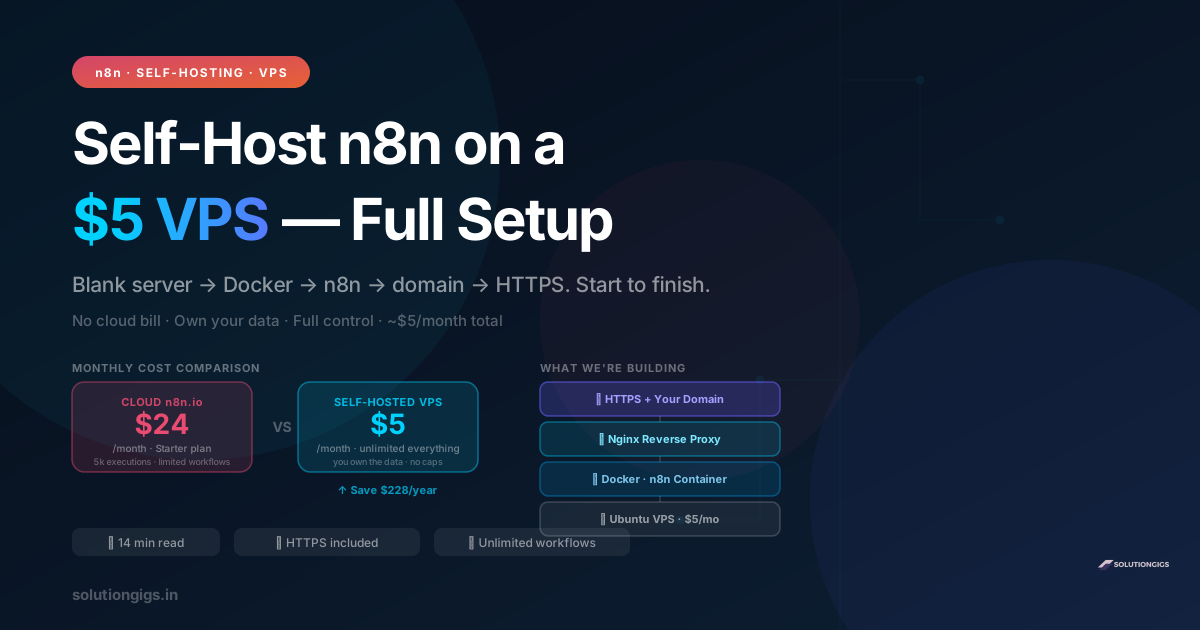
| n8n Cloud Starter | Self-Hosted VPS | |
|---|---|---|
| Monthly cost | $24/month | ~$5/month |
| Executions | 5,000/month cap | Unlimited |
| Active workflows | 15 max | Unlimited |
| Your data | Stored by n8n.io | Stored by you |
| Annual cost | ~$288/year | ~$60/year |
| Savings | — | $228/year |
The only thing you give up is managed upgrades and cloud support. For a developer comfortable with a terminal, that is not a trade-off at all.
What the Self-Host n8n Stack Looks Like
Here is the full architecture we are building:
Internet
    ↓
Your Domain  (n8n.yourdomain.com)
    ↓
HTTPS / TLS  (Let's Encrypt via Certbot)
    ↓
Nginx        (reverse proxy: 443 → localhost:5678)
    ↓
Docker       (n8n container, restart: unless-stopped)
    ↓
Ubuntu 22.04 VPS  (~$5/month)
Each layer has one job. Nginx handles TLS termination and proxies to n8n's container port. Docker keeps n8n isolated and simple to upgrade. The firewall blocks everything except SSH, HTTP, and HTTPS — port 5678 is never exposed to the internet directly.
What You Need Before Starting
- A VPS running Ubuntu 22.04 LTS — at least 1 vCPU and 1 GB RAM
- A domain name with access to its DNS settings
- SSH access to the server (root or a sudo user)
Best VPS providers for n8n self-hosting in 2026:
Hetzner (best value): CAX11 ARM instance — €3.29/month, 2 vCPU, 4 GB RAM, 40 GB SSD. Extraordinary price-to-performance. EU-based data centres.
DigitalOcean: Basic Droplet — $6/month, 1 vCPU, 1 GB RAM. Well-documented, excellent developer experience, global regions. Great for beginners.
Linode (Akamai Cloud): Similar to DigitalOcean, $5/month entry-level. Reliable long-term uptime.
All three have one-click Ubuntu 22.04 installs. Once your server is provisioned and you can SSH in, come back here.
Step 1 — Point Your Domain to the Server
Go to your domain registrar's DNS settings and add an A record before doing anything on the server:
Type:   A
Name:   n8n
Value:  YOUR_SERVER_IP
TTL:    300
This creates n8n.yourdomain.com pointing at your server. DNS propagation takes 1–30 minutes. You can continue with server setup while you wait — just don't run Certbot until the domain resolves.
Check propagation at any time:
dig n8n.yourdomain.com +short
When it returns your server IP, you're ready for HTTPS.
Step 2 — Lock Down the Firewall First
SSH into your server. The very first thing you do on any new VPS — before installing anything — is set a firewall. This is the step most tutorials bury at the end or skip.
# Allow SSH first — do this before enabling or you lock yourself out
ufw allow 22/tcp

# Allow HTTP and HTTPS (needed for Nginx + Certbot)
ufw allow 80/tcp
ufw allow 443/tcp

# Enable the firewall
ufw --force enable

# Verify
ufw status
Expected output:
Status: active

To          Action    From
--          ------    ----
22/tcp      ALLOW     Anywhere
80/tcp      ALLOW     Anywhere
443/tcp     ALLOW     Anywhere
Port 5678 — n8n's native port — is intentionally absent. n8n will only be reachable through Nginx on port 443, never exposed directly. This matters.
Step 3 — Install Docker
Use the official Docker install script — this always gets the latest stable version and is the safest method:
curl -fsSL https://get.docker.com | sh
Add your user to the docker group so you don't need sudo for every command:
usermod -aG docker $USER
newgrp docker
Verify it is working:
docker --version
docker run hello-world
Step 4 — Run n8n With Docker Compose
Create a directory for n8n's config files:
mkdir ~/n8n && cd ~/n8n
Create docker-compose.yml with the following contents:
version: "3.8"

services:
  n8n:
    image: n8nio/n8n:1.128.0   # pin a version — see the note below
    container_name: n8n
    restart: unless-stopped
    ports:
      - "127.0.0.1:5678:5678"
    environment:
      - N8N_HOST=n8n.yourdomain.com
      - N8N_PORT=5678
      - N8N_PROTOCOL=https
      - NODE_ENV=production
      - WEBHOOK_URL=https://n8n.yourdomain.com/
      - GENERIC_TIMEZONE=Asia/Kolkata
      - N8N_BASIC_AUTH_ACTIVE=true
      - N8N_BASIC_AUTH_USER=admin
      - N8N_BASIC_AUTH_PASSWORD=change_this_to_something_strong
    volumes:
      - ~/.n8n:/home/node/.n8n
Four things to customise before you start:
- Replace both instances of
n8n.yourdomain.comwith your actual domain - Set
GENERIC_TIMEZONEto your timezone (e.g.America/New_York,Europe/London) - Change
N8N_BASIC_AUTH_PASSWORDto a strong password — this is what protects your instance from the internet - Pin the image tag. Check n8n's releases page and set the tag to the current stable version instead of the one above. Most self-hosting tutorials use a bare
n8nio/n8n, which resolves tolatest— that means anydocker compose pullcan silently jump you across a breaking change while your workflows are running. A pinned tag makes upgrades something you choose, and makes rolling back a one-line edit.
Start n8n:
docker compose up -d
Confirm it is running:
docker ps
docker logs n8n --tail 20
You should see n8n starting and listening on port 5678. It is not yet reachable from the internet — by design. Nginx handles the external connection.
Step 5 — Install and Configure Nginx
apt update && apt install -y nginx
Create the Nginx site config:
nano /etc/nginx/sites-available/n8n
Paste this configuration:
server {
    listen 80;
    server_name n8n.yourdomain.com;

    location / {
        proxy_pass http://127.0.0.1:5678;
        proxy_http_version 1.1;
        proxy_set_header Upgrade $http_upgrade;
        proxy_set_header Connection "upgrade";
        proxy_set_header Host $host;
        proxy_set_header X-Real-IP $remote_addr;
        proxy_set_header X-Forwarded-For $proxy_add_x_forwarded_for;
        proxy_set_header X-Forwarded-Proto $scheme;
        proxy_read_timeout 86400s;
    }
}
The proxy_read_timeout 86400s line is important — n8n uses WebSockets for its editor. Without a long timeout, the connection drops while you are editing workflows.
Enable the site and test the config:
ln -s /etc/nginx/sites-available/n8n /etc/nginx/sites-enabled/
nginx -t
systemctl restart nginx
At this point http://n8n.yourdomain.com should load n8n (HTTP only). If it does not, confirm DNS has propagated with dig n8n.yourdomain.com +short.
Step 6 — Add HTTPS With Certbot (Free Let's Encrypt)
apt install -y certbot python3-certbot-nginx
certbot --nginx -d n8n.yourdomain.com
Certbot asks for your email (for renewal alerts) and whether to redirect HTTP to HTTPS. Choose redirect. Certbot edits your Nginx config automatically and reloads it.
After Certbot finishes, visit https://n8n.yourdomain.com. You should see n8n's login screen with a valid SSL padlock. Enter the basic-auth credentials you set in the compose file.
Auto-renewal is already configured — Certbot installs a systemd timer that renews certificates before they expire. Verify:
systemctl status certbot.timer
Step 7 — Test Auto-Start After Reboot
This step saves you at 2 AM when the VPS unexpectedly reboots.
Docker starts automatically on boot when installed via the official script. Your n8n container has restart: unless-stopped, so Docker brings it back up automatically. Test it now:
reboot
Wait 60 seconds, SSH back in, and check:
docker ps
n8n should be running. Nginx restarts automatically because systemd enables it by default. Your full stack comes back within 30 seconds of the server booting.
The Security Basics You Actually Need
Most tutorials end at Step 6. These four steps are what actually keep your instance safe:
1. Never expose port 5678. The Docker Compose file above binds n8n to 127.0.0.1:5678 — only Nginx can reach it. This is why the firewall does not need to allow 5678. Never change this binding to 0.0.0.0:5678.
2. Enable basic auth. The N8N_BASIC_AUTH_ACTIVE=true environment variable puts a username/password gate in front of the entire UI. Without it, anyone who finds your URL has full access to your workflows and connected credentials.
3. Use a strong password. n8n's basic-auth password is transmitted in HTTP headers. HTTPS encrypts it in transit, but the password itself must be strong — it is the only gate between the public internet and your data.
4. Keep n8n updated — deliberately. Bump the pinned tag in docker-compose.yml to the new version, then:
cd ~/n8n
cp -r ~/.n8n ~/.n8n.bak-$(date +%F)   # workflows + credentials live here
docker compose pull
docker compose up -d
docker image prune -f
This is a 30-second upgrade with zero workflow downtime on most setups. Two habits worth keeping: back up ~/.n8n first (it holds every workflow and stored credential — one directory, so there's no excuse), and skim the release notes before bumping a major version. Rolling back is then just re-pinning the old tag and restoring the backup directory.
Migrating From n8n Cloud to Self-Hosted
If you have workflows on n8n.io cloud and want to move them to your VPS:
- In n8n cloud: Settings → Export → download the JSON backup
- On your self-hosted instance: Settings → Import → upload the JSON file
- Reconnect credentials — Google, Slack, Gmail, and other services must be re-authorised via OAuth on the new instance (credentials are intentionally not exported for security reasons)
Workflow logic, node configurations, and connections transfer completely. Reconnecting credentials is a few OAuth clicks per service.
3 Workflows to Build First on Your New Instance
Once your n8n instance is live, these are the most immediately useful automations to build:
1. Contact form → Google Sheets → Slack → auto-reply email The starter workflow from the n8n natural language tutorial — now running on your own infrastructure with no execution limits.
2. Daily digest: top HN posts → Claude summary → email A scheduled workflow that fetches top Hacker News posts every morning, summarises them with n8n's Anthropic (Claude) node, and emails you a digest. Saves 20 minutes of reading per day.
3. GitHub issue → Notion task + Slack alert On every new GitHub issue, create a task in Notion and ping a Slack channel. Never miss an issue again.
If you want to go deeper on AI-powered workflows, the MCP server tutorial on solutiongigs.in shows how to expose your own APIs as tools that Claude can call — and you can wire those directly into n8n's Anthropic node for powerful custom automation.
Common Mistakes When Self-Hosting n8n
| Mistake | Fix |
|---|---|
| Exposing port 5678 in the firewall | Bind Docker to 127.0.0.1:5678 only |
| No basic auth set | Add N8N_BASIC_AUTH_ACTIVE=true in compose |
| Skipping the firewall step | Always ufw enable before anything else |
Setting restart: no in compose |
Use restart: unless-stopped |
Forgetting to update N8N_HOST |
Must match your real domain or webhooks break |
| Running without HTTPS | Free Certbot certificate — no excuse to skip |
Frequently Asked Questions
Can I self-host n8n for free?
n8n Community Edition is completely free — no licence, no limits. You only pay for the server. A $5–$6/month VPS covers personal and most small-team use cases. Annual cost: ~$60, versus ~$288 for the managed cloud Starter plan.
What are the minimum server requirements for self-hosting n8n?
n8n needs at least 1 vCPU and 1 GB RAM. It runs on 1 GB but can be tight under heavy load. 2 GB RAM is a comfortable baseline. 20 GB disk is plenty. Ubuntu 22.04 LTS is the most reliable OS.
Is it safe to self-host n8n on a public server?
Yes, with three things in place: a firewall allowing only ports 22, 80, and 443; n8n bound to localhost only (not directly exposed); and basic auth enabled. All three are covered in this tutorial.
How do I keep n8n running after a server reboot?
Use restart: unless-stopped in your Docker Compose file (already included above). Docker starts automatically on reboot when installed via the official script, so all containers with that policy restart within 30 seconds.
How do I add HTTPS to a self-hosted n8n instance?
Install Certbot, run certbot --nginx -d your-domain.com, and choose to redirect HTTP to HTTPS. Certbot configures Nginx automatically and sets up auto-renewal. Takes about 5 minutes once DNS is pointing to your server.
Which VPS provider is best for self-hosting n8n?
Hetzner offers the best value in 2026 — €3.29/month for 2 vCPU and 4 GB RAM. DigitalOcean ($6/month) and Linode ($5/month) are solid alternatives with excellent documentation. All three support Ubuntu 22.04 with one-click setup.
Can I migrate my existing n8n cloud workflows to self-hosted?
Yes. Export from n8n cloud as JSON (Settings → Export), then import on your self-hosted instance (Settings → Import). Workflow logic transfers completely. Credentials need to be reconnected manually — this takes a few OAuth clicks per service.
Conclusion
Self-hosting n8n is a 30-minute setup that saves $228+ per year and removes every usage cap. The stack in this tutorial — Docker + Nginx + Certbot on a $5 VPS — is stable, production-ready, and easy to maintain.
What you built:
- n8n running behind Nginx with HTTPS and your own domain
- Basic auth protecting the entire UI
- Firewall blocking direct access to the n8n container port
- Auto-restart on crash and on server reboot
Next step: Go build that first workflow. The n8n natural language tutorial walks you through building a contact form → Sheets → Slack → email automation in under 30 minutes — and it will run on your new self-hosted instance with no execution limits.
Explore more free developer tools at solutiongigs.in →

Mohammed Yaseen
Founder, SolutionGigs
Full-stack developer and automation builder at solutiongigs.in. Mohammed self-hosts n8n, builds MCP servers, and writes FastAPI backends — and shares honest, no-fluff tutorials so developers can ship real things. LinkedIn →
More in AI Development
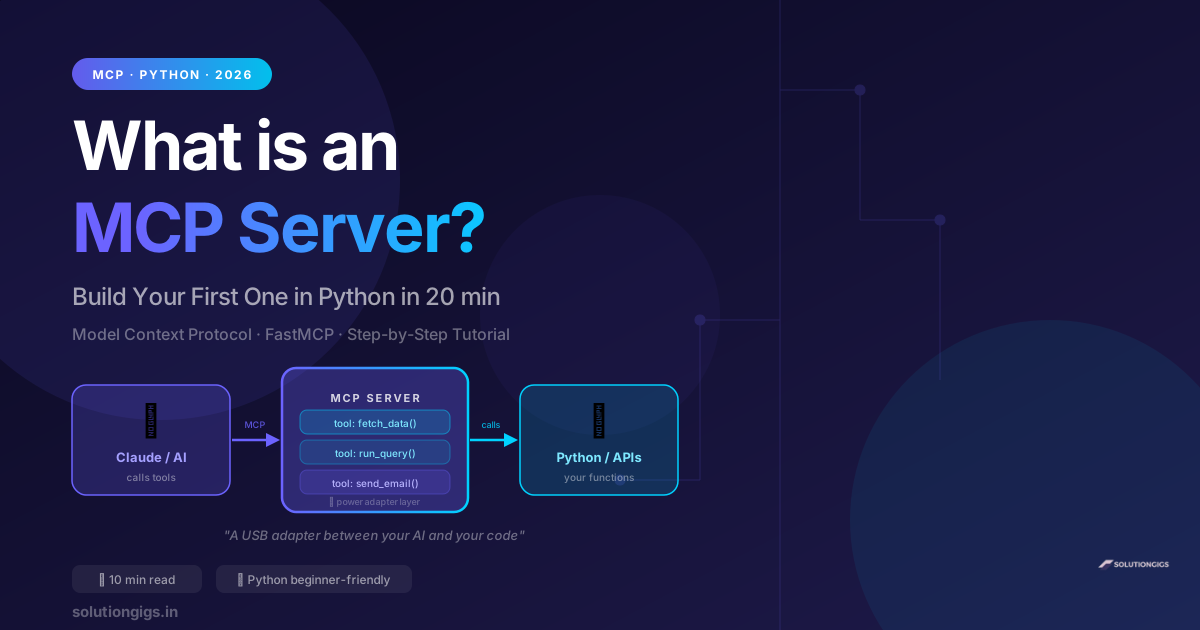
What Is an MCP Server? Build Your First One in Python
Learn what an MCP server is in plain English and build your first one in Python in 20 minutes. Step-by-step FastMCP tutorial — no prior MCP experience needed.
Vibe Coding: Build Apps With AI — Complete Guide
What is vibe coding? Learn how to build real apps using just AI prompts — no deep coding experience needed. Best tools (Cursor, Claude Code, Copilot), step-by-step guide, real examples, and how Indian freelancers are earning with vibe coding in 2026.
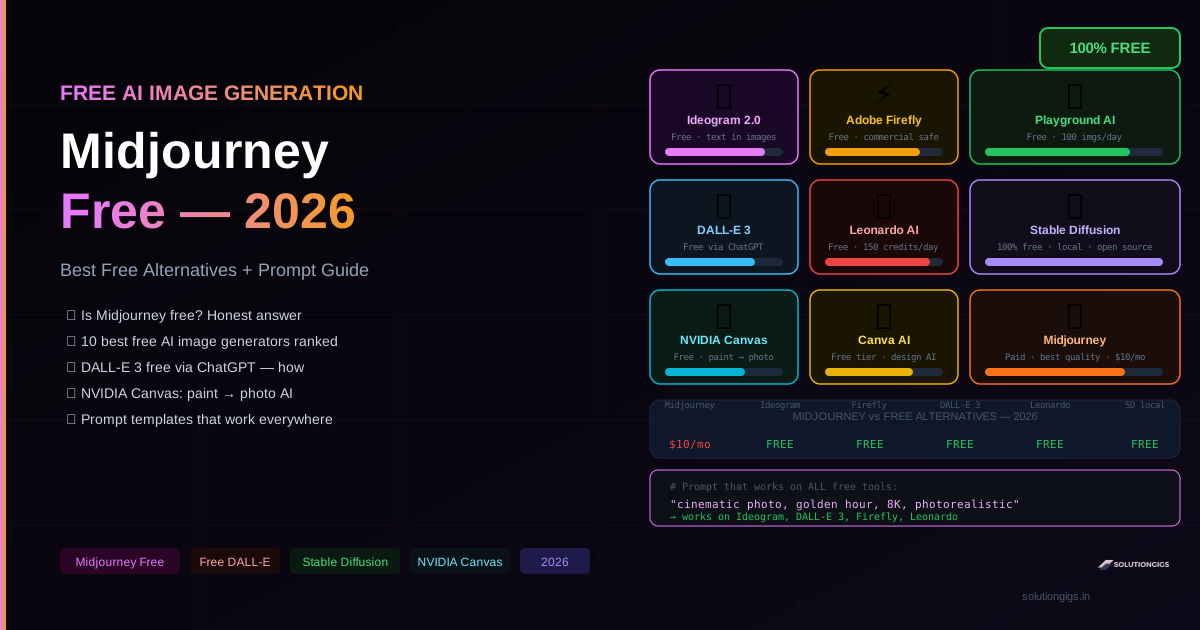
Midjourney: Is It Free? + 10 Best Free AI Image Generators
Is Midjourney free in 2026? Honest answer: no. But here are 10 free AI image generators that actually work — DALL-E 3, Ideogram, Adobe Firefly, Leonardo AI, Stable Diffusion, NVIDIA Canvas. Full prompt guide included.