
How to Convert Markdown to Word and PDF Without Losing Formatting
Nested lists collapse, numbering restarts and code blocks vanish when Markdown becomes a Word file. Here is why it happens, and six checks that catch it. Every guide tells you to reindent to four spaces — but your document was never wrong, the converter's indentation rule was.

Quick Answer: Most Markdown-to-Word conversions fail silently. The file opens, it looks broadly right, and the structure underneath is gone — headings are bold text rather than Heading styles, a three-level outline has flattened to one, numbering has restarted, and the code block inside step two has vanished. The fix is a converter that emits real Word constructs, and a two-minute check afterwards: open the navigation pane, add an item to a numbered list, and Ctrl+click a link. If any of the three fails, the conversion lost something you cannot see.
Every guide to this problem gives the same advice: indent your nested lists by four spaces. That advice works, and it is also backwards. Your document was not wrong. The converter's indentation rule was.
This guide covers the part those guides skip — why nested lists collapse, what "real" heading styles and numbering actually mean inside a .docx, why the popular "paste the preview into Word" trick costs more than it looks, and six concrete checks that catch every silent failure before you send the file to a client.
What actually breaks when Markdown becomes a Word file
Almost nothing breaks loudly. That is the whole problem. A conversion that drops your document structure produces a file that opens without complaint and reads acceptably at a glance — the damage only surfaces when someone tries to edit it, generate a table of contents, or read it with software.
Here is what goes wrong, what causes it, and the test that catches it.
| What breaks | Symptom you can see | Underlying cause | Test that catches it |
|---|---|---|---|
| Heading structure | Nothing — headings look bold and large | Emitted as direct formatting, not Heading 1–6 styles | Navigation pane is empty |
| Nested lists | Three levels render as one or two | Converter requires 4-space indents; you wrote 2 | Count the indent levels |
| List numbering | Numbers look right until you edit | Digits typed as text, not a numbering definition | Insert an item — do the rest renumber? |
| Fenced code in a list | The code becomes an ordinary paragraph | Parser's fence rule is anchored to column zero | Look at step 2 of any install section |
| Table headers | Header row appears only on page 1 | tblHeader not set on the header row |
Scroll a long table past a page break |
| Links | Blue underlined text that does nothing | Styled text instead of a hyperlink relationship | Ctrl+click it |
| PDF text layer | Looks perfect, cannot be searched | Page was rasterised to an image | Ctrl+F for a word you can see |
| Non-ASCII characters | Accents and Cyrillic simply absent | PDF built with WinAnsi-only built-in fonts | Search the PDF for the accented word |
Six of those eight are invisible on screen. That is why "it looked fine" is not a verification step.
Why nested lists collapse — the two-space rule nobody explains
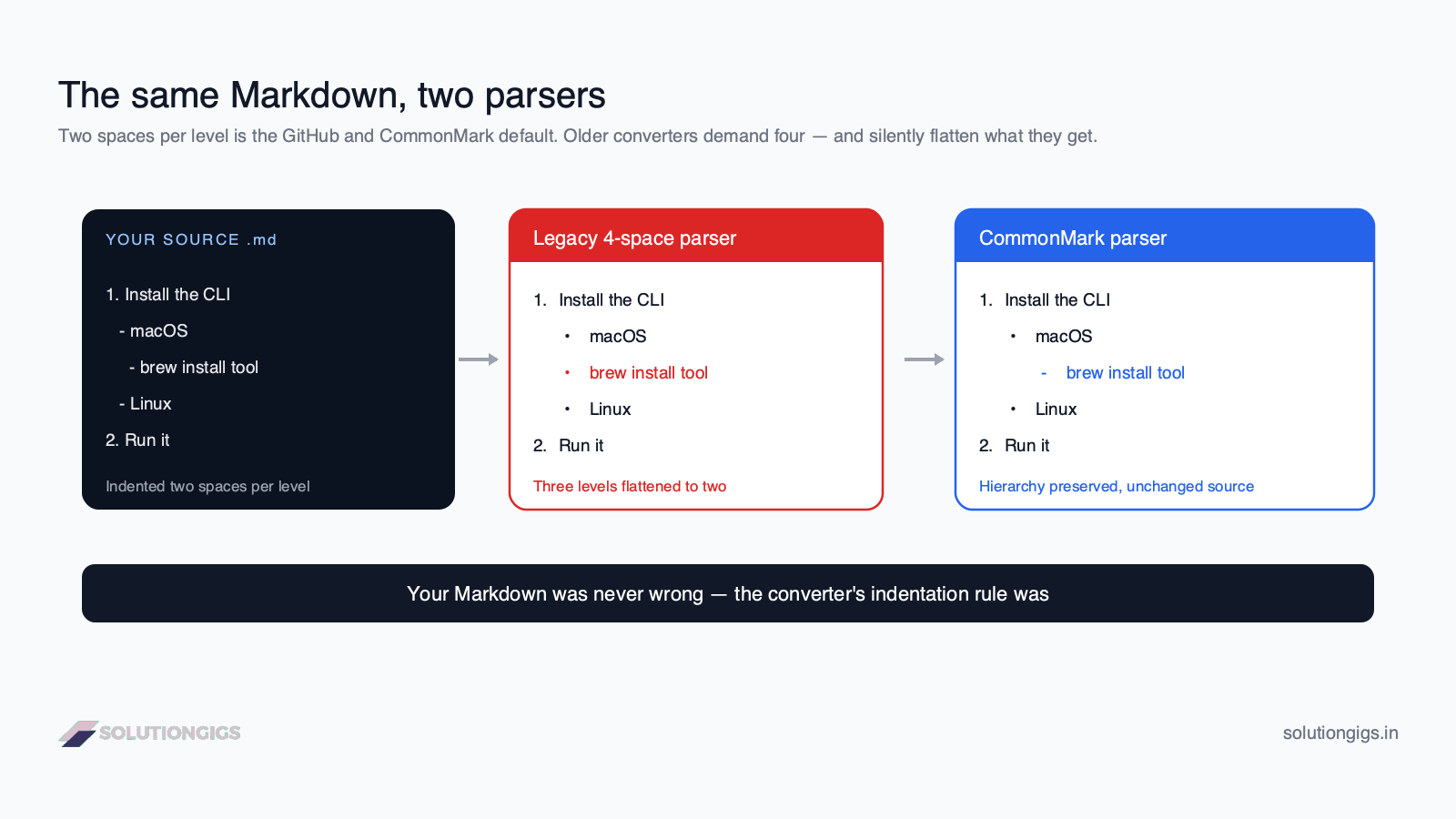
A nested list breaks because the converter and the CommonMark specification disagree about how much indentation makes a child item. Not because you formatted the document badly.
CommonMark measures a nested item's indentation against the content column of its parent — the column where the parent's text starts, just after - or 1. . Write - macOS and its content column is 2, so two spaces of indent is enough to nest under it. This is why GitHub renders two-space nesting correctly, why your editor auto-indents by two, and why essentially every README in existence is written that way.
Older Markdown libraries predate that specification. They inherited the original 2004 Markdown rule: four spaces, or one tab, per level. Given fewer than four, they do not nest — they treat the line as a sibling of the parent.
The result is not an error message. It is a quietly wrong document:
1. Install the CLI
   - macOS
     - brew install tool
   - Linux
2. Run it
Under a four-space parser, brew install tool becomes a sibling of macOS instead of its child. Three levels become two. Nobody is told.
The reason this advice persists: telling people to reindent to four spaces is a workaround that works with every parser, so it spread as folk wisdom. It is still a workaround. Reformatting a correct document to suit a broken tool means every README you convert now differs from the one in your repository.
Modern tooling has moved on. Pandoc's Markdown reader switched to CommonMark rules for list-item nesting and kept the old behaviour behind an opt-in four_space_rule extension. Converters still built on older libraries did not. When a tool flattens your lists, that is the library it is using — and it is worth choosing a different tool rather than editing your document.
The four ways to convert Markdown to Word, compared
There are only four real approaches. They differ far more than their outputs look.
| Paste rendered HTML | Pandoc CLI | Print to PDF | Web converter | |
|---|---|---|---|---|
| Real Heading 1–6 styles | Usually not | Yes | N/A | Depends |
| Working navigation pane | No | Yes | N/A | Depends |
| Auto table of contents | No | Yes (--toc) |
N/A | Depends |
| Real list numbering | Partly | Yes | N/A | Depends |
| Two-space nesting | Yes (browser renders it) | Yes (modern versions) | Yes | Depends |
| Editable afterwards | Yes | Yes | No | Yes |
| Setup required | None | Install Pandoc | None | None |
| Repeatable / scriptable | No | Yes | No | No |
The honest summary: Pandoc is the best answer if you will convert documents repeatedly and are willing to install it. A good web converter is the best answer for a one-off. Pasting HTML is the fastest answer and the one most likely to produce a file that cannot be maintained.
Why "paste the preview into Word" costs more than it looks
This trick is recommended everywhere, and it genuinely does preserve nesting, tables and inline formatting — the browser has already done the parsing correctly.
What it usually does not preserve is named styles. Pasted HTML typically arrives as direct formatting: text that happens to be 16pt and bold, rather than text that is a Heading 2. To Word those are completely different things:
- The navigation pane lists Heading-styled paragraphs. Direct formatting produces an empty pane.
- Insert → Table of Contents collects Heading styles. With direct formatting it collects nothing.
- Changing the document theme restyles named styles. Direct formatting ignores it.
- Accessibility checkers and screen readers navigate by heading level. Bold text has no level.
For a one-page memo, none of that matters. For a specification, a report or anything a client will edit, it matters a great deal — and the loss is invisible until someone tries to use the document properly.
What makes a Word file "real" — the four constructs that matter
A .docx is a ZIP of XML. Whether your document survived conversion is a question about which XML elements are inside it, and you can reason about it without ever opening the file.
1. Heading styles, not big bold text
A real heading is a paragraph carrying <w:pStyle w:val="Heading1"/>. That single reference is what puts the line in the navigation pane, in the generated table of contents, and in the accessibility tree. A paragraph that is merely 18pt and bold has none of that.
2. Numbering definitions, not typed digits
A real numbered list references a numbering definition (<w:numPr>), and Word computes the digits. Typed digits look identical until you insert an item in the middle — then the list reads 1, 2, 3, 3, 4. It is the fastest test in this article and it takes four seconds.
A related detail almost nobody handles: 3. in Markdown means the list starts at three. Preserving that requires a numbering override, not just a decimal format. If your converted list silently renumbers from 1, that is what is missing.
3. Hyperlink relationships, not blue text
A working link is a <w:hyperlink> pointing at a relationship in the document's _rels file. Blue underlined text is just blue underlined text. Ctrl+click tells you which one you have.
4. Repeating table header rows
A table row marked <w:tblHeader/> repeats its header at the top of every page the table spills onto. Without it, page two of a long table is a wall of unlabelled cells. This is the single most common defect in converted reports, because it is invisible until the table gets long enough to break.
Markdown to PDF: the text layer is the whole test
A PDF that cannot be searched is a screenshot with a .pdf extension. Any conversion route that rasterises the page — some "print to PDF" paths, some image-based exporters — produces a document that looks perfect and is useless to software.
That matters more than it sounds:
- Google cannot index the content.
- An applicant tracking system reading a converted CV extracts nothing, so the CV scores zero.
- Nobody can copy a quote out of it.
- Accessibility tools have nothing to read aloud.
Test it in three seconds: open the PDF, press Ctrl+F, and search for a word you can see on screen. No match means no text layer.
There is a second, quieter failure in PDF generation: fonts. The fourteen fonts built into the PDF specification are WinAnsi-encoded, covering little more than Western European characters. A generator that leans on them does not error on Привет or Ωμέγα — it draws nothing at all. Embedding a Unicode TrueType face is the only way the text you wrote is the text in the file. Convert one line of accented or non-Latin text and search for it before trusting a generator with a real document.
Six checks that catch every silent failure
We built these while testing the converter behind our own Markdown to Word and PDF tool, by running a deliberately hostile document through it — one with five-level nesting, fenced code inside list items, a table with mixed alignment, an ordered list starting at three, task lists, footnotes, YAML front matter and Cyrillic text. Each check below corresponds to a failure we actually saw in something.
Run all six on any converted document before it leaves your machine. It takes about two minutes.
- Open the navigation pane (View → Navigation Pane in Word, or the outline sidebar in Google Docs). Your headings should be listed, at the right levels. An empty pane means the headings are decoration, not structure.
- Insert a new item into the middle of a numbered list. Everything below should renumber automatically. If it does not, the numbers are typed text.
- Count your deepest list. Open the source, find the most deeply nested item, and confirm the converted file has the same number of indent levels. This is where the two-space rule bites.
- Find a fenced code block inside a list item — every install section has one. It should still be a monospaced, shaded block, still inside its step. Falling out of the list, or arriving as an ordinary paragraph, means the parser's fence handling is broken.
- Ctrl+click one link. It should open. Then scroll any long table past a page break and confirm the header row repeats.
- For the PDF: Ctrl+F for a visible word, then repeat with an accented or non-Latin word if your document has one. Both must match.
Check 3 is the one people skip and the one that costs most. A flattened outline in a specification changes what the document says — a sub-requirement promoted to a top-level requirement is a different requirement. Nobody reading the Word file will know it was ever nested.
Common mistakes to avoid
- Trusting "it looked fine." Six of the eight failure modes above are invisible on screen. Looking is not checking.
- Reformatting your Markdown to suit a broken converter. Now your repository and your document disagree, permanently. Change the tool instead.
- Leaving YAML front matter in place. A converter that does not recognise it prints
--- title: ... ---as the first paragraph of your document. A good one reads it as metadata and uses the title. - Assuming images come across. Most converters will not fetch remote images — a converter that does is making arbitrary outbound requests on your behalf, which is a genuine security concern. Expect placeholder text for anything hosted elsewhere, and embed images locally if you need them.
- Converting a document with secrets in it on a public tool. Anything under NDA should be converted with software you control. This is not paranoia; it is the same rule you already apply to pasting code into a web form.
- Ignoring the PDF text layer on a CV. If you are exporting a resume, a rasterised PDF is worse than no PDF. Our guide to how an ATS resume checker works covers what parsers actually extract.
Converting Markdown to Word and PDF on SolutionGigs
We built the free Markdown to Word and PDF converter because every existing option failed at least one of the six checks above, and because the ones that passed wanted an account.
Two decisions shape it. First, it uses a CommonMark-compliant parser, so two-space nesting and fenced code inside list items are simply correct — there is no reformatting step and no four-space rule to remember. Second, the .docx and the .pdf are generated from one reading of your document, which is why the heading levels, the list numbering and the table columns agree between the two files instead of drifting apart.
The Word file uses Word's built-in Heading 1–6 styles, real numbering definitions with correct start values, real tables with repeating header rows and real clickable hyperlinks. The PDF is drawn as a genuine text layer with an embedded Unicode font. Your document is converted in memory and returned in the same response — nothing is written to disk, and there is no account to attach it to.
Paste your Markdown, drop a .md file on it, or load the sample to see exactly what it handles. Then run the six checks. That is the point of publishing them.
Frequently Asked Questions
Why do nested lists break when I convert Markdown to Word?
Because of an indentation rule in the converter, not a mistake in your document. CommonMark measures a nested item's indent against the parent's content column, so two spaces after a dash is enough. Older Markdown libraries require four spaces and treat a two-space indent as a sibling instead of a child, which flattens a three-level outline into one list. Modern Pandoc and CommonMark-based converters handle two-space nesting correctly.
How do I convert a Markdown file to Word without losing formatting?
Use a converter that emits real Word constructs rather than styled text: built-in Heading 1 to 6 styles, real numbering definitions, real tables and real hyperlink relationships. Then verify the output with the navigation pane, a renumber test and a Ctrl+click on one link. If the navigation pane is empty, the headings are only bold text and the structure is gone.
Is pasting the rendered Markdown preview into Word good enough?
It is fast and it looks right, but it usually pastes direct formatting rather than named styles. That means no working navigation pane, no automatic table of contents and no way to restyle the document by changing the theme. It also varies by browser and by Word version. Use it for a one-page memo, not for a document anyone else will edit.
Why does my converted PDF look fine but the text cannot be selected?
The pipeline rasterised the page: the words are pixels in an image, not a text layer. That PDF cannot be searched, quoted, indexed by Google or parsed by an applicant tracking system. Test it by pressing Ctrl+F in any PDF reader and searching for a word you can see. No match means no text layer.
Do accented, Greek or Cyrillic characters survive Markdown to PDF conversion?
Only if the generator embeds a Unicode font. The fourteen fonts built into the PDF format are WinAnsi-encoded and cover little beyond Western European text, so a generator that relies on them drops the characters silently rather than raising an error. Check by converting one line containing the accented text and searching the PDF for it.
Can I convert a README.md to Word or PDF?
Yes, and READMEs are the hardest test because they combine everything converters get wrong: two-space nested lists, fenced code blocks inside numbered install steps, badge images, tables and task lists. Convert it, then run the six checks in this guide. If the fenced code inside step two survived as a code block, the converter is a good one.
Will a converted .docx open correctly in Google Docs and LibreOffice?
Yes, provided the file uses standard Office Open XML with built-in styles rather than Word-specific features. Expect small font differences: the document requests fonts such as Calibri and Consolas, and an editor without them substitutes something close. Layout, headings, numbering and tables all carry across.
Conclusion
Markdown-to-Word conversion has a trust problem, not a formatting problem. The output almost always looks acceptable, which is exactly why broken conversions ship — to clients, to specifications, to job applications — with their structure quietly removed.
Two things fix it. Choose a converter built on a CommonMark parser, so your two-space nesting and your fenced code blocks are read the way you wrote them rather than the way a 2004 rule expects. Then spend two minutes on the six checks: navigation pane, renumber, indent depth, code inside a list, Ctrl+click and repeating header, and Ctrl+F in the PDF. Those six catch every failure mode in this article.
If you would rather not install anything, our Markdown to Word and PDF converter is free, needs no account, and builds both files from the same parse. Convert your README, run the checks, and see for yourself — that is a better recommendation than anything we could write here. If you are producing client documents more broadly, the free invoice generator and scan to PDF tool cover the other two documents freelancers send most. Worth knowing before you upload a confidential document: this converter runs server-side, unlike the 19 SolutionGigs tools that never leave your browser.
Mohammed Yaseen
Founder, SolutionGigs
Mohammed builds the free developer tools at SolutionGigs, including the Markdown to Word and PDF converter this guide describes — and wrote the six checks after a torture-test document broke every converter he tried. LinkedIn →
Try the Free Markdown to Word & PDF Converter
Free, no signup — right in your browser.
Try the Free Markdown to Word & PDF Converter →More in Developer

Where to Publish Your Developer Blog: Dev.to, Hashnode, Medium or Your Own Domain
Dev.to, Hashnode, Medium or your own domain? The real decision is who owns the audience and where the search credit lands. A practical guide to picking a home base, syndicating with canonical tags so your own site keeps the ranking, and why platform links are not backlinks.
JSON Formatter & Prettifier — Free Online JSON Beautifier
Format, validate, minify, and fix broken JSON in your browser. Free online JSON formatter — no account, no server. Includes Fix JSON for repairing malformed JSON.

Free Developer Tools You Can Use Without Installing Anything
Most "best free developer tools" lists rank by features. The question that actually matters is where your data goes: 19 of these 63 browser tools issue zero network calls, so a production JWT or a passport photo never leaves your laptop. Here is the classification, taken from the source code, plus the 15-second offline test that settles it for any tool on the web.