
Free Scan to PDF Online — Better Than CamScanner (No Watermark)
Turn phone photos into crisp, professional PDFs with auto edge detection and perspective correction — completely free, no watermark, no sign-up. A better CamScanner alternative.

You need to scan a receipt, contract, textbook page, or whiteboard photo and turn it into a crisp PDF. You pull out your phone, take a shot, and… now what? Most scanning apps slap a watermark on your document, charge a monthly fee, or bury the good features behind a paywall. SolutionGigs ScanPro does all of it for free — no account, no watermark, no limits.
This guide explains exactly how our free document scanner works, how it compares to CamScanner, and how to get the best results from any photo.
The Problem With Most Scanning Apps
CamScanner launched in 2011 and dominated the market for a decade. But in 2019 it was found to contain malware, and in 2020 it introduced aggressive watermarks and a paywall for basic features. Even the "free" tier now adds a "CamScanner" stamp to every exported PDF.
Other apps have similar issues:
| App | Free tier | Watermark | Monthly fee |
|---|---|---|---|
| CamScanner | Limited pages | Yes (paid to remove) | $4.99–$9.99/mo |
| Adobe Scan | Unlimited scans | No (requires Adobe account) | $9.99/mo for PDF editing |
| Microsoft Lens | Unlimited | No | Free (requires Microsoft account) |
| SolutionGigs ScanPro | Unlimited | Never | $0 |
The difference: we process your documents server-side with no account, no tracking, and no upsells. Files are deleted automatically after 1 hour.
What Makes a Great Document Scanner?
A smartphone camera photo of a document has three problems:
1. Perspective Distortion
Unless you hold the phone perfectly parallel to the document (nearly impossible), the edges appear angled and the document looks trapezoidal. Lines that are straight in reality look like trapezoids in the photo.
2. Lighting and Contrast
Phone cameras try to expose for the whole scene. A white document on a dark desk often comes out grey and washed out. Text appears light and hard to read.
3. Background Clutter
The document doesn't fill the frame. There's a table, hands, or floor in the corners. You need to crop to just the document.
A real document scanner solves all three. Here's how ScanPro does it:
How ScanPro Works: The Technical Details
Step 1: Auto Edge Detection (OpenCV Canny)
When you click Auto Detect, we send your image to the server where OpenCV runs a Canny edge detector. This algorithm:
- Converts to grayscale and applies Gaussian blur to remove noise
- Computes intensity gradients using the Sobel operator (finds edges)
- Applies non-maximum suppression to thin edges to single-pixel width
- Double threshold hysteresis to keep only strong, connected edges
The result is a binary edge map. We then run cv2.findContours() to find all closed shapes, keep the largest quadrilateral (must be at least 10% of the image area), and use cv2.approxPolyDP() to simplify it to exactly 4 corners.
If no clear 4-corner shape is found, ScanPro falls back to the full image frame and lets you adjust manually.
Step 2: Perspective Transform (Four-Point Warp)
Once we have 4 corners, we compute a perspective transform matrix using cv2.getPerspectiveTransform(). This solves the homography — the mathematical transformation that maps the angled quad to a perfect rectangle.
The output width and height are computed from the real-world distances between corners (using Euclidean distance), so the output proportions match the actual document, not the photo frame.
We use cv2.INTER_LANCZOS4 interpolation — the highest quality option — which minimises aliasing at fine text edges.
Step 3: Enhancement Filters
After dewarping, you can apply one of four enhancement modes:
Auto Enhance — Analyses the image statistics (mean luminance, standard deviation). If the image is dark, we apply a Brightness enhancement. If contrast is flat (std dev < 55), we boost it. Finally, a light unsharp mask sharpens text edges.
B&W Document — Converts to greyscale, applies aggressive contrast enhancement (2.2×), and a stronger unsharp mask. This gives the classic "scanned document" look where text is deep black and paper is bright white. Best for text-heavy documents, contracts, invoices.
Color — No enhancement, preserves original colours. Best for diagrams, photos embedded in documents, or when the original lighting is already good.
None — Raw dewarped image, no processing.
Step 4: Multi-Format Export
Once all pages are processed:
PDF — We use Pillow's native PDF serialisation (Image.save(..., "PDF", save_all=True, append_images=[...])). You choose A4 (1240×1754 px at 150 DPI), US Letter (1275×1650 px), or Original size. Pages are white-padded to fill the chosen paper size.
DOCX — Uses python-docx to create a Word document with one image per page at 0.45-inch margins. Word retains the images at high quality — you can resize, annotate, or replace them.
ZIP (JPG/PNG) — Packages all processed images into a ZIP archive. JPG at quality=95 is smallest; PNG is lossless but larger.
Step-by-Step: How to Use ScanPro
1. Upload Your Images
Drag and drop one or more document photos onto the upload zone, or click Choose Images. Supports JPG, PNG, WebP, HEIC (iPhone photos), BMP, and TIFF.
Tip: You can upload a whole multi-page document at once. Each image becomes one page.
2. Auto-Detect Edges
Click Auto Detect on any image. You'll see the teal corner handles jump to the detected document boundary. The status indicator shows "Edges detected" in teal.
If detection isn't perfect — that's fine. Drag the four corner handles to exactly where you want the crop. The handles have a generous 20px hit target so they're easy to grab on mobile too.
3. Apply Enhancement
Choose the enhancement mode:
- Auto — good for most cases
- B&W Doc — best for text documents, makes them super crisp
- Color — use for diagrams or when colours matter
- None — when you just need the dewarp, no processing
Click Apply Crop to lock in the crop and enhancement for the current page. The thumbnail in the strip shows a green checkmark.
Click Apply to All Pages to apply the same crop and enhancement to every page instantly — perfect when all your pages have similar framing.
4. Export
Select your format and click the export button:
- Generate PDF → Choose A4, Letter, or Original before clicking
- Save as Images → Choose JPG or PNG in the dropdown, then click
- Word Document → One click, no options needed
The progress bar appears while the server processes your images. When complete, click Download to get your file.
Getting the Best Results: Photography Tips
The auto detection works best when there is strong contrast between the document and the background.
Do:
- Place the document on a dark surface (dark desk, dark floor)
- Use even lighting — avoid strong shadows from one side
- Fill the frame — the document should take up at least 60% of the photo
- Keep the camera steady — motion blur destroys edge detection
Avoid:
- White document on white table (very hard to detect)
- Flash reflections that wash out one area
- Shooting at a very steep angle (>45°) — detection works fine but text quality drops
For iPhone users: HEIC is supported natively. If you have Live Photos, the still frame is used.
Comparing ScanPro vs CamScanner: Feature by Feature
| Feature | ScanPro (SolutionGigs) | CamScanner Free |
|---|---|---|
| Watermark | None | Yes — on every page |
| Sign-up required | No | Yes |
| Edge detection | OpenCV Canny + contour | Yes (proprietary) |
| Perspective correction | Yes (4-point homography) | Yes |
| B&W document mode | Yes | Yes (paid) |
| Export to PDF | Yes, A4/Letter/Original | Yes (limited) |
| Export to Word (DOCX) | Yes | Paid only |
| Export to ZIP images | Yes | No |
| Multi-page upload | Yes, unlimited | Yes (limited free) |
| File privacy | Deleted after 1 hr | Stored in cloud |
| Price | $0 forever | $4.99–$9.99/month |
| Offline use | No (server-side) | Yes (mobile app) |
| Mobile app | No (web, mobile-friendly) | Yes (iOS & Android) |
Use Cases: When to Use Each Export Format
Use PDF When:
- Sending a contract, invoice, or form to someone
- Archiving receipts or legal documents
- Submitting an assignment or report
- Uploading to any system that requires PDF (government portals, HR systems, banks)
Use Word DOCX When:
- You want to add annotations or notes around the scanned page
- You're creating a report and need to embed the scan alongside typed text
- Someone needs to edit the document layout
Use ZIP Images When:
- You need individual high-res image files per page
- You're uploading to a platform that accepts images but not PDFs
- You want to use the processed images in a design tool like Photoshop or Figma
- You're building a website and need clean scanned images
Why Perspective Correction Is the Most Important Feature
Many "scan" tools just crop your image. That's not a scan — that's a crop. A real scan corrects the geometry.
Here's the difference in practice: imagine you photograph a A4 document from slightly to the left. In the raw photo, the left edge appears wider than the right. Text lines that are horizontal in reality appear to slant downward from left to right. The document looks like a trapezoid.
After perspective correction, the document is a perfect rectangle. Left and right margins are equal. Text lines are horizontal. The result looks like it came from a flatbed scanner.
This matters for:
- OCR accuracy — optical character recognition works dramatically better on flat, straight text
- Professional appearance — scanned documents are used in legal, medical, and financial contexts where a crooked photo looks careless
- Readability — angled text is harder to read
Privacy and Security
We take document privacy seriously. Here's exactly what happens to your files:
- Your images are uploaded over HTTPS (encrypted in transit)
- They are saved to our server's temp directory with a random UUID filename
- The processing worker runs OpenCV + Pillow transforms
- The output file is generated in the same temp directory
- After 1 hour, an automated cleanup job deletes all temp files
- We do not read, analyse, index, or share your documents
- No account means there's no persistent record tying you to the scan
For highly sensitive documents (legal, medical, financial), we recommend processing on an incognito tab and downloading immediately. Once you download, no copy exists on our servers after the 1-hour window.
Technical Stack
For developers curious about the implementation:
- Edge detection: OpenCV 4.9 —
cv2.Canny,cv2.findContours,cv2.approxPolyDP - Perspective transform:
cv2.getPerspectiveTransform+cv2.warpPerspectivewithINTER_LANCZOS4 - Image enhancement: Pillow 10 —
ImageEnhance.Brightness,ImageEnhance.Contrast,ImageFilter.UnsharpMask - Canvas crop editor: Vanilla JavaScript + HTML5 Canvas 2D API
- PDF generation: Pillow's PDF serialiser (
save_all=True, append_images=[...]) - DOCX generation:
python-docxlibrary - Backend: FastAPI + Uvicorn (Python)
- Job tracking: SQLite with WAL mode for concurrent read/write
- File cleanup: Hourly automated cleanup of temp directory
Frequently Asked Questions
Can I scan both sides of a document? Yes — just photograph each side separately and upload both. Each becomes a separate page in the PDF. You can reorder them in the image strip.
What's the maximum file size per image? We accept images up to 50 MB each. For best performance, use JPG at full camera resolution — typically 3–12 MB per photo.
Does ScanPro work on Android and iOS? Yes, the web app is fully mobile-responsive. Upload photos from your camera roll or take a photo directly (choose "Take Photo" in the file picker on mobile).
Can I use this for OCR (text recognition)? Not yet — OCR (extracting searchable text from the scanned image) is on our roadmap. The current tool produces image-based PDFs where text is not machine-readable. For OCR, combine this tool with a separate OCR service after download.
Why did edge detection fail on my image? Common reasons: the document is the same colour as the background (white paper on white desk), very low contrast, heavy shadows, or the document is crumpled with no clear straight edges. In these cases, manually drag the corner handles to set the crop area.
What does "B&W Document" mode do exactly? It converts the image to greyscale, then applies 2.2× contrast enhancement followed by unsharp masking. The result is deep black text on a bright white background — exactly what you see from a flatbed scanner or a photocopier. This mode makes text the most legible and produces smaller file sizes.
Try ScanPro Now
Ready to ditch the watermarks and subscriptions? Open ScanPro →
Upload your document photos, let our edge detector do its job, and download your PDF in under 30 seconds. No account. No watermark. No catch.
Mohammed Yaseen
Founder, SolutionGigs
Mohammed has been building image and document processing tools since 2018 and writes about document scanning, PDF conversion, perspective correction, and browser-based image tools. LinkedIn →
More in Image Tools
How to Remove Background Noise from Audio — Free Online
Remove hiss, hum, fan noise, and HVAC noise from any audio file free online. No software, no account. Works on podcasts, Zoom recordings, voice memos, and interviews.
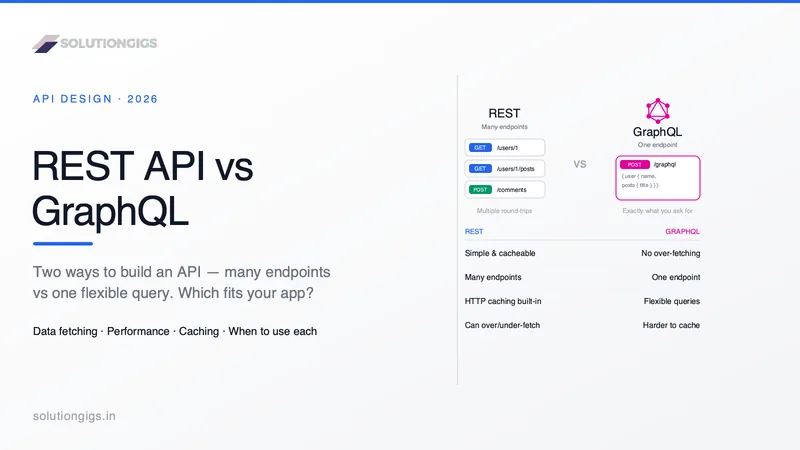
REST API vs GraphQL: Differences & When to Use Each
REST API vs GraphQL — the real differences, performance and caching trade-offs, code examples, and a clear framework for choosing the right API style in 2026.
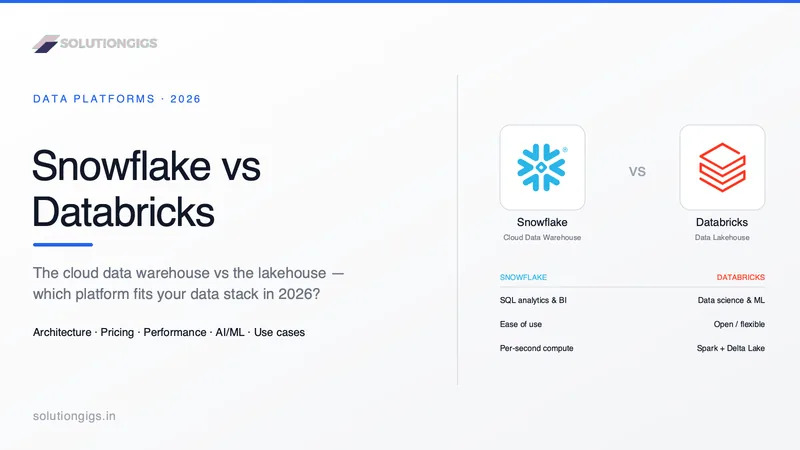
Snowflake vs Databricks: Which Data Platform Wins?
Snowflake vs Databricks in 2026: warehouse vs lakehouse compared on architecture, pricing, performance and AI/ML — plus a clear rule for which one to pick.