
How to Transcribe Audio to Text for Free (MP3, M4A, WAV, Zoom, Podcasts)
Turn any audio or video recording into text in minutes using free Whisper AI. Works with MP3, M4A, WAV, Zoom recordings, podcast episodes, and more — no account needed.

Quick Answer: Upload your file to SolutionGigs Transcribe, wait a few minutes while Whisper AI processes it on our server, then copy the text or download it as .txt or .srt. It accepts MP3, M4A, WAV, OGG, FLAC and video files up to 500 MB, detects 90+ languages automatically, needs no account, and deletes your upload as soon as the transcript is ready.
If you've ever recorded a meeting, podcast, lecture, or interview and needed the words in text form — you know how painful manual transcription is. Typing out an hour of audio takes four to six hours of work. This guide shows you how to do it in minutes, completely free, using AI.
This page is the step-by-step how-to. If you want the deeper version — how word error rate is actually measured, what destroys accuracy, why free tools don't label speakers, and how to turn a transcript into meeting notes or subtitles — read Free Audio Transcription to Text: The Complete Workflow.
What is audio transcription?
Audio transcription converts spoken words in an audio or video file into written text. It's used by:
- Students — turning lecture recordings into study notes
- Podcasters — creating show notes and blog content from episodes
- Journalists — converting interview recordings into quotable text
- Remote teams — making Zoom or Google Meet recordings searchable
- Content creators — repurposing YouTube videos into articles
Traditional services charge per minute. AI-powered tools like the one on this page do it for free.
How to transcribe audio to text for free
SolutionGigs Transcribe uses OpenAI's Whisper AI model to convert any audio or video file into an accurate text transcript with chapters — no account needed, no payment required.
Step 1: Upload your audio file
Go to solutiongigs.in/transcribe and drop your file onto the upload area, or click "Select File". Supported formats include:
- Audio: MP3, M4A, WAV, OGG, FLAC, OPUS, WMA, AIFF
- Video: MP4, MKV, MOV, WEBM (the audio track is extracted automatically)
Maximum file size is 500 MB, which covers most recordings including long podcast episodes and full-length lectures.
Step 2: Wait for Whisper AI to process
The server runs OpenAI Whisper locally — your file is never sent to OpenAI or any third party. Processing time depends on file length:
| File length | Approximate time |
|---|---|
| Under 5 min | 10–30 seconds |
| 30 min | 1–3 minutes |
| 1 hour | 3–6 minutes |
| 2+ hours | 6–15 minutes |
A progress bar shows you exactly where the transcription is.
Step 3: Copy or download your transcript
When complete, you get:
- Chapters — the transcript is split every 3 minutes with a timestamp, making it easy to navigate long recordings
- Copy button — copies the full text to clipboard in one click
- .txt download — plain text file with chapter headings and timestamps
- .srt download — subtitle file compatible with video editors, YouTube, and VLC
What languages are supported?
Whisper automatically detects the language. It supports over 90 languages, including:
English, Spanish, French, German, Portuguese, Italian, Dutch, Polish, Russian, Arabic, Hindi, Bengali, Japanese, Chinese (Mandarin), Korean, Turkish, Vietnamese, Indonesian, and many more.
The detected language is shown in the result header so you always know what was recognised.
How accurate is it?
Accurate enough to publish after a light edit — provided the recording is decent. Accuracy in speech recognition is measured as word error rate (WER): substitutions, deletions and insertions divided by the words actually spoken. On clean, professionally recorded English, the largest Whisper models sit at roughly 3% WER; real meeting audio with crosstalk, room echo and unfamiliar names lands several times higher.
What that means in practice:
- The recording matters far more than the model. A close microphone and a quiet room will beat any amount of model tuning.
- Where the errors land decides usefulness. Errors spread across filler words are invisible; the same error rate concentrated in names, numbers and product terms makes a transcript useless.
- Names and jargon are the reliable weak spot. Fix them with one find-and-replace pass rather than one at a time.
You can measure this on your own transcript with the word error rate calculator in our complete transcription guide, which also covers the hallucination problem — cases where the model produces fluent text that was never spoken.
How to transcribe a Zoom recording for free
- Open Zoom and go to Recordings (local or cloud)
- Find your meeting recording — it's usually saved as an
.mp4file - Upload the
.mp4directly to SolutionGigs Transcribe — video files are fully supported - Download the
.txttranscript when done
No need to extract audio first. The transcriber pulls the audio track from the video automatically.
How to transcribe a Google Meet recording
Google Meet saves recordings to Google Drive as .mp4 files. Download the file and upload it directly. Same process as Zoom.
How to transcribe a podcast episode
Podcast episodes are usually distributed as MP3 files. To transcribe:
- Download the episode MP3 (right-click → Save as in most podcast players)
- Upload to the transcriber
- Use the .txt download to create show notes, a blog post, or a searchable archive
A one-hour podcast episode typically transcribes in 3–5 minutes.
Is my audio file kept private?
Yes. Here's exactly what happens:
- Your file is uploaded to a private server (not a shared cloud service)
- Whisper AI processes it locally — the audio never leaves the server
- The transcript JSON is stored temporarily
- Both the audio file and transcript are automatically deleted within 1 hour
Nothing is shared, retained, or sent to OpenAI or any third party. This is explicitly different from using OpenAI's Whisper API directly, which does send your audio to OpenAI's servers.
Free vs paid transcription tools — comparison
| Tool | Free tier | Accuracy | Privacy |
|---|---|---|---|
| SolutionGigs | Unlimited | High (Whisper base) | Server-side, 1h deletion |
| Otter.ai | 600 min/month | High | Cloud stored |
| Rev.com | Paid only | Very high (human) | Cloud stored |
| Descript | Limited monthly hours | High | Cloud stored |
| OpenAI Whisper API | Pay per minute | High | Sent to OpenAI |
SolutionGigs is the only option here with no monthly cap and no data retention. Free tiers elsewhere are capped in monthly minutes, which means they stop being free exactly when a project gets busy — there is a cost calculator for your own volume in the complete guide.
Tips for better transcription accuracy
Use higher-quality audio. The single biggest factor. A USB microphone or headset mic will outperform a phone speaker or laptop mic.
Reduce background noise. Coffee shop recordings, air conditioning hum, and street noise all reduce accuracy. Even a free noise reduction pass in Audacity helps significantly.
One speaker at a time. Overlapping speech confuses any AI model. Whisper handles single-speaker audio best.
Convert to MP3 first if the file is large. If your file is over 200 MB, converting it to MP3 first at 128 kbps will reduce upload time without losing meaningful speech quality.
What is Whisper AI?
Whisper is a speech recognition model released as open source by OpenAI in 2022. Unlike cloud speech APIs, the model weights are public and can be run on any server — which is why SolutionGigs can offer it for free without per-minute charges.
The model was trained on 680,000 hours of multilingual audio from the internet, making it robust across accents, languages, and recording conditions. SolutionGigs uses the "base" model (145 MB), which balances speed and accuracy well for server-side use. Larger variants (large-v3) offer better accuracy but require more RAM.
Frequently asked questions
Can I transcribe video files? Yes — MP4, MKV, MOV, WEBM, and AVI are all accepted. The audio track is extracted automatically before transcription.
What is the maximum file size? 500 MB. For larger files, split the audio into parts first (Audacity can do this for free).
Can I transcribe a YouTube video? Not directly — YouTube URLs are not accepted. Download the audio track first using a browser extension or a tool like VLC, then upload the audio file.
How long does transcription take? Roughly 3–6× faster than real-time. A 30-minute recording typically takes 1–3 minutes.
Does it support multiple speakers? The transcript is continuous text — it does not label which speaker said what (speaker diarization). Each chapter section is time-stamped to help you navigate. If attribution matters, record each speaker to a separate track and transcribe them individually — that is the only free approach that survives crosstalk.
Can AI transcription make up words? Occasionally, yes. Speech models predict the most likely next word from the audio and the words so far, so during silence or heavy background noise they can generate fluent text that was never spoken. The peer-reviewed Careless Whisper study found hallucinated content in about 1.4% of transcribed segments. Trim long silences before uploading, be suspicious of oddly polished sentences right after a pause, and always have a human check anything that will be used as a record.
Should I download the .txt or the .srt file?
Download .txt when you want to read, search or summarise the transcript — timestamps only get in the way. Download .srt when you are adding subtitles to a video: it is the numbered-cue format YouTube, Vimeo and every video editor accept. If you are embedding captions in your own web player with the HTML5 <track> element you need WebVTT instead, which uses a dot before the milliseconds and a WEBVTT header line.
Ready to try it? Transcribe your audio file now — free, no sign-up →
Mohammed Yaseen
Founder, SolutionGigs
Mohammed has been building AI-powered audio tools since 2018 and writes about speech recognition, automatic transcription, and voice-to-text technology. LinkedIn →
More in Transcription
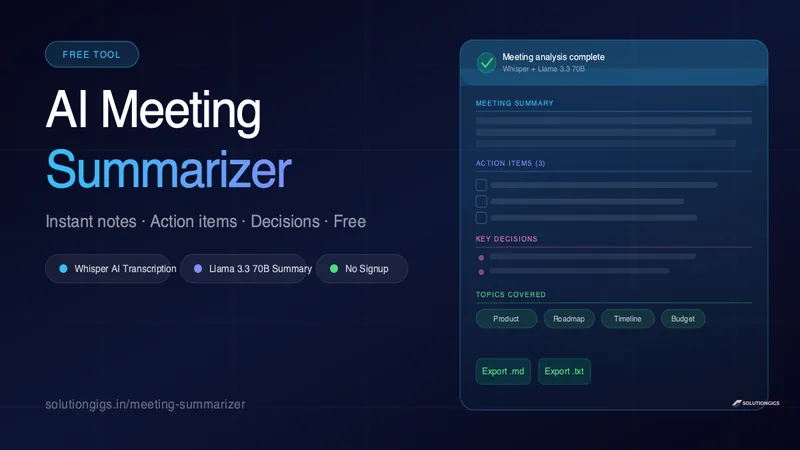
Free AI Meeting Summarizer — Action Items, Notes & Decisions
Turn any Zoom, Teams, or Meet recording into structured meeting notes in minutes. Get AI-generated summaries, action items, key decisions, and topics — free, no signup, powered by Whisper + Llama 3.3.
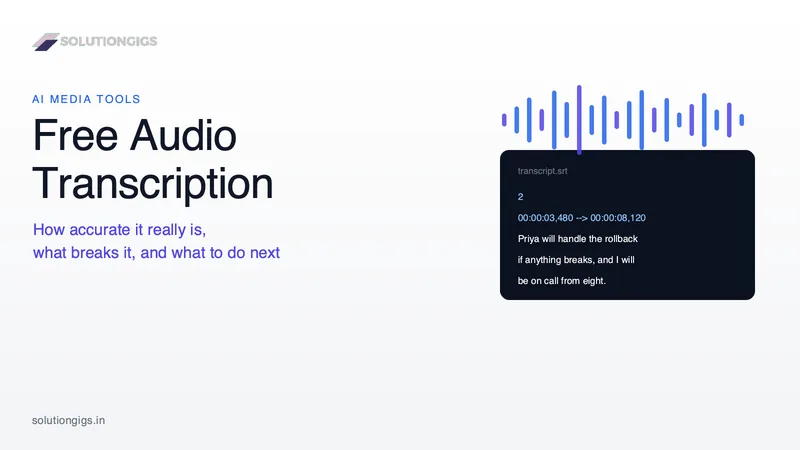
Free Audio Transcription to Text: The Complete Workflow
Free audio transcription to text is good enough for real work now — but the recording, not the model, decides whether your transcript is usable. This guide explains how AI transcription actually works, how word error rate is measured (with a calculator you can run on your own text), the four things that destroy accuracy, the hallucination problem nobody warns beginners about, the difference between TXT, SRT and VTT, why free tools do not label speakers, and how to turn a raw transcript into meeting notes, chapters or subtitles.
Free Scan to PDF Online — Better Than CamScanner (No Watermark)
Turn phone photos into crisp, professional PDFs with auto edge detection and perspective correction — completely free, no watermark, no sign-up. A better CamScanner alternative.